
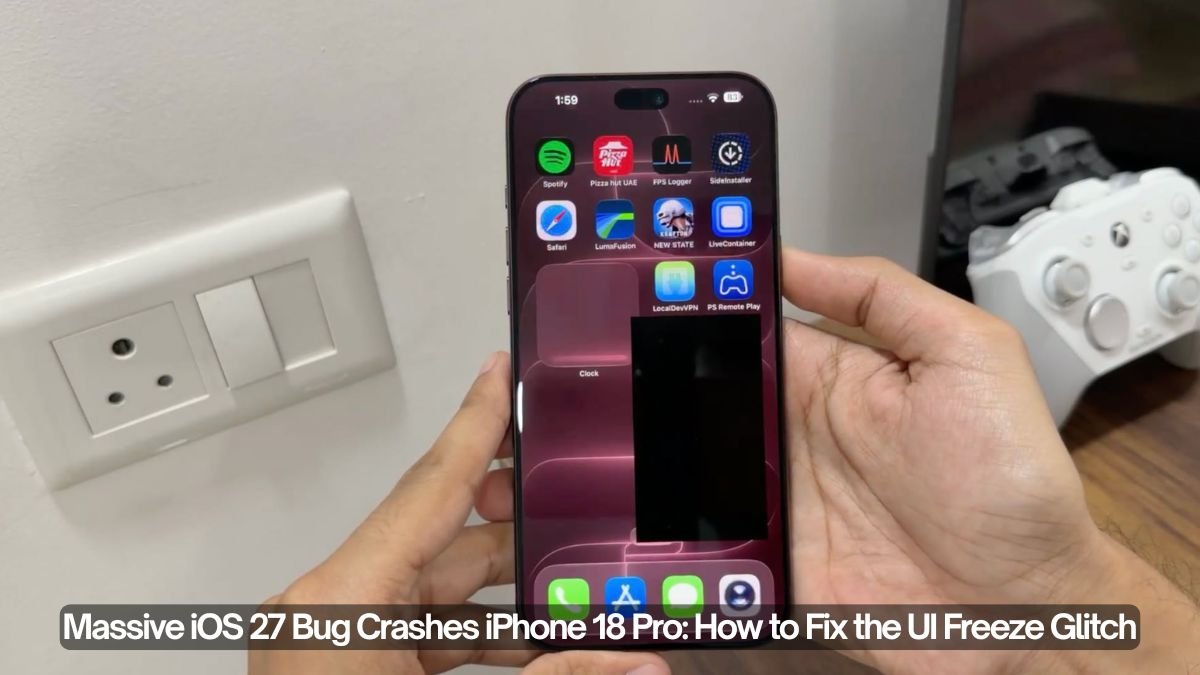
A new iOS 27 bug is completely soft-locking iPhones, rendering touchscreens unresponsive. Discovered and shared widely on X (formerly Twitter) by TechDroider, this glitch is catching users off guard. Here is everything you need to know about the bug, what triggers it, and how to revive your frozen device.
Apple’s highly anticipated iOS 27 rollout has hit a major snag. According to multiple tech community reports and a viral alert from popular tech account TechDroider, a severe UI-freezing glitch is causing the newest iPhone 18 Pro—as well as older models like the iPhone 17—to become entirely unresponsive.
If your screen is completely frozen and not accepting touch inputs, you might have accidentally triggered this bug.
What is the iOS 27 Control Center Bug?
The issue was thrust into the spotlight via a recent post by TechDroider, which warned users about a critical flaw in the iOS 27 interface.
This Glitch Can FULLY CRASH the new iPhone 18 Pro
New iOS glitch has been discovered which can make the iPhone completely UNRESPONSIVE and mess up the entire UI. Apple NEEDS to take action immediately and push a HOTFIX update ASAP.
This is not a minor visual bug. Your iPhone can literally become unusable until it recovers. DO NOT TRY!
— TechDroider (@techdroider) September 27, 2026
The bug triggers a state called a “soft-lock”. When activated, the iOS SpringBoard (the application that manages the iPhone’s home screen) completely crashes and stops responding.
Symptoms of the glitch include:
- Total Touch Failure: The display remains on, but swiping, tapping apps, and gestures stop working completely.
- Stuck UI Elements: Elements like the camera and flashlight icons on the lock screen get visually stuck at the top of the display.
- Power Down Screen Fails: Even if you hold the side button, the “Slide to Power Off” toggle cannot be swiped because the touchscreen is completely dead.
How is the Bug Triggered?
The glitch is caused by a very specific, yet easily accidental, gesture combination. According to user testing, the system freezes if you attempt to pull down the Notification Center and the Control Center at the exact same time.
Apple has fixed the iPhone Crash bug that occurred when opening Notification Center and Control Center at the same time. https://t.co/PVYOP4JSyv pic.twitter.com/XbjEjN6G4n
— TechDroider (@techdroider) September 28, 2026
While it is an unusual gesture, tech experts strongly warn users not to test this on their own devices. Some users who intentionally triggered the bug for a prank or out of curiosity found that forcefully rebooting the phone afterward could temporarily mess up background data indexing, leading to a sluggish phone.
Also Read: What Time Does iOS 27 Release on September 14?
How to Fix the iOS 27 Frozen Screen
Because the touchscreen stops registering input entirely, you cannot restart the phone normally. The only way to escape the soft-lock is to perform a Force Restart (Hard Reset) using the physical hardware buttons.
Here is the exact sequence to bring your iPhone 18 Pro (or any modern Face ID iPhone) back to life:
When Will Apple Fix This?
Currently, Apple has not issued an official statement regarding the timeline for a patch. However, given the severity of the UI freeze and the widespread attention brought by accounts like TechDroider, users and tech outlets are actively urging Apple to push an emergency Hotfix update ASAP.
Until iOS 27 is patched, be mindful of your gestures near the top of your screen, and keep the Force Restart sequence memorized just in case.